

Take Control of Your Finances
Tired of looking through multiple apps to track your finances? Try Money Management, our all-in-one finance tool that allows you to view and manage all your accounts in one place. Accessible through your online banking dashboard or the BG Mobile app, Money Management can be connected to all your BankGloucester accounts, as well as any external accounts you may have at other financial institutions.
- Review the Dashboard for a quick financial overview
- See a detailed transaction history, add filters to narrow down reporting, and export the file, if needed
- Create a custom budget tailored to your lifestyle or let the system auto generate one. Add sub-categories to breakdown your spending even further.
- Manage cashflow with expected income and expenses
- View recurring transactions
- Track spending and analyze by category
- View trends to easily target expenses you may want to reevaluate
- Set and track financial goals—from emergency savings to retirement
- Calculating your net worth, and more
Simply activate Money Management once logged into your account to get going.
How to Get Started with Money Management
1. Log in
 To access Money Management or to sign up for the first time, log in to your online or mobile banking dashboard. For new Money Management accounts, follow the prompts to set up the program; for existing accounts, simply select Money Management from the navigation menu.
If you haven’t enrolled in online banking already, you will need to sign up before you can access your account.
2. Connect Your accounts
 Money Management allows you to connect all of your financial accounts including those at other financial institutions. Add as many or as little you would like—from retirement funds and loans to credit card accounts.
To link a new account, click on “Add an Account” located at the top right corner of the page.
3. Review Activity and start managing
 Now that your accounts are set up, click the Transactions tab to review activity across all of your connected accounts.
To view activity for specific accounts, click on the “Filter Accounts” button on the top left of the page and select which accounts you want to include.
Manage Your Finances with Ease
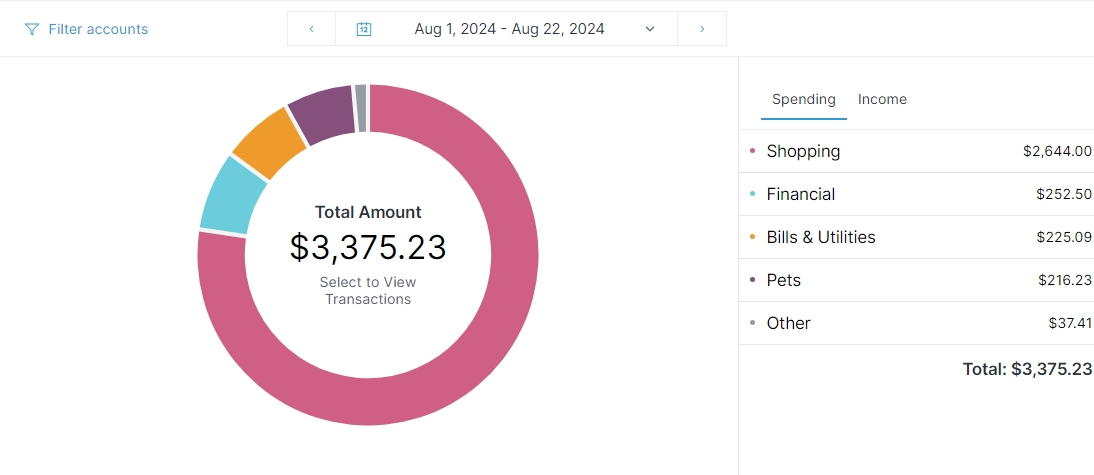
Review Spending
Use the Spending tab to view a breakdown of your transactions by category to give you an idea of where your money is allocated.
To breakdown your finances even further use the Trends tab, which will display your categorized spending month by month, helping you to identify & track changes in spending habits over time.
Track Net Worth & Cash Flow
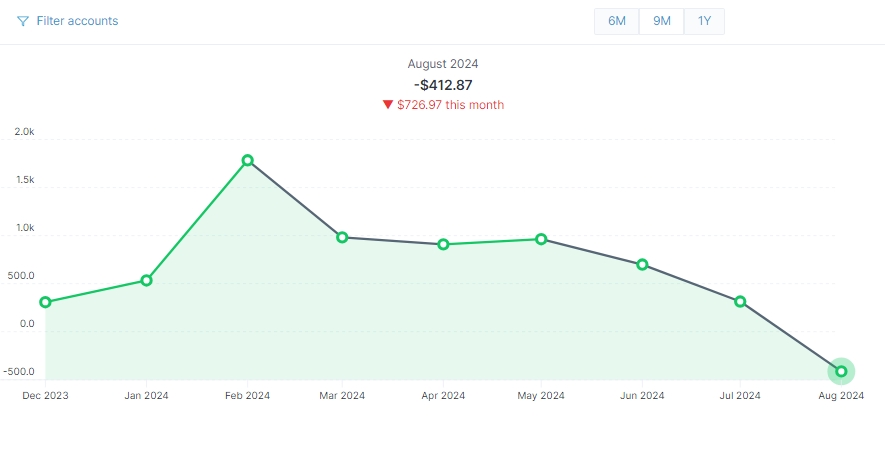
The Debts tab shows a visual representation of your total debt over time. You can view debt account details like balance, APR, and current amount due for each account.
To see a complete overview of your assets & liabilities, go to the Net Worth tab. Money Management automatically compares your assets & liabilities providing updated net worth information each month.
Create a Budget & Set Goals
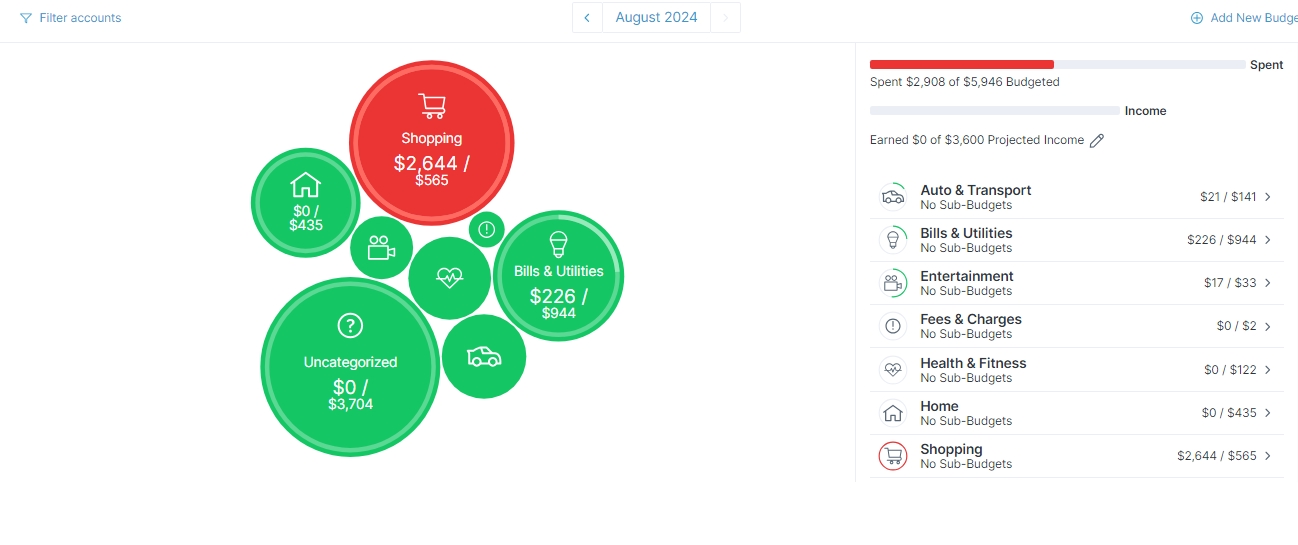
The Budget tab will help you create a personalized budget by categorizing your transactions into expense groups like monthly bills, groceries, entertainment and more.
To create a more detailed budget, you may choose to add custom sub-categories. Money Management also makes it easy to track long-term financial goals in the Goals tab.

Business Checking
Elevate your business with flexible account options.
Get the tools and support your business deserves, with account options designed to adapt as your needs evolve.